 Keeping a calendar of events updated can be a real pain. There are all sorts of plugins and widgets that let you add one to your site, but they often require duplicate entry and can be difficult to maintain. If you use Google Calendar for your personal or business calendars (and even if you don’t), adding a calendar of events to your blog or website (and maintaining it!) is fairly easy. Here’s how…
1. Create a New Calendar & Share
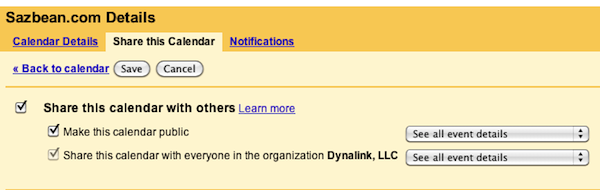
On the left under My calendars, click “Add”. Pick a name, add a description, etc. Make sure you click “Share this calendar with others” and “Make this calendar public”. Click “create calendar” at the top.
2. Get the Widget
Click on the triangle next to the calendar you just created under My calendars. Click on “Calendar Details”. Near the bottom you’ll see a section called Embed This Calendar.

3. Customize & Install
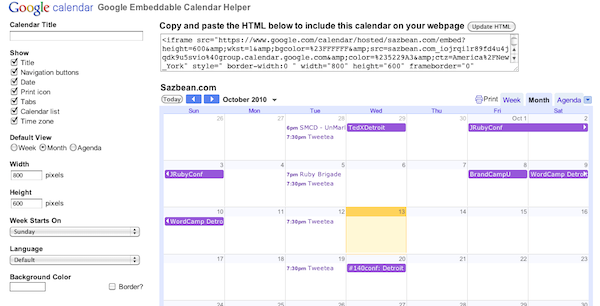
Click on “Customize the color, size and other options”. Here you can change the color, what information is show and how it is displayed. You can have the calendar displayed in the traditional calendar format or as an agenda (which I like). Also customize the size so it fits on your site. When you’re done, grab the code at the top and install it on your site (requires a bit of knowledge of html) and you’re done!
4. Update & Maintain
To add a new event, just click on a day and add the event, same as you would on your regular Google Calendar. If you have events on your personal or business calendar that you’d like to add to your calendar of events, you can copy them to the public calendar by opening them and clicking on “copy to….”
Do you use Google Calendar for your Calendar of Events? If not, what do you use?
(photo by Ed Siasoco)